Vectors Your LaserRuns Clean
Turn raster art into smooth, few-node paths that import straight into LightBurn, Glowforge and xTool — and know exactly what will cut and what will engrave before you press go.
- Browser-BasedNothing uploaded to trace
- Clean SVGFully editable paths
- Runs LocallyNo waiting on an upload
- High FidelityCrisp. Clean. Accurate.
Straight into LightBurn
The head follows the line.
Every trace from this page uses flat fills only.
Opens in
Three, natively
- LightBurn
- Glowforge
- xTool
SVG imports directly. No plugin, and no conversion step.
Checked
Real curves
- Gradients
- flattened
- Colour regions
- one path each
- Corners
- fitted, not stepped
The honest limit
It arrives as an engrave
Glowforge is explicit: strokes become cuts, fills become engraves — and everything we output is filled. LightBurn works differently: you assign Line or Fill per layer yourself, and Fill only accepts closed shapes, which is what we hand you. To cut an outline instead, set the fill to none and give the path a stroke.
From trace to laser bed
Import It, Then Tell The Laser What To Do.
The same SVG behaves differently in LightBurn, Glowforge and xTool. Here is how to bring it in and set each operation.
Trace It Here
Traces from this page use flat fills only: every colour region is one closed path with no gradient, which is what laser software expects. Keep the colour count to the number of operations you plan to run.
Download SVG, Or DXF If You Prefer
SVG works in all three. DXF works in LightBurn and xTool, and in Glowforge only on a Premium plan. SVG also keeps your exact colours, which is how each program separates operations.
Import The File
LightBurn: the Import button, File then Import, Ctrl or Cmd+I, or drag and drop. Glowforge: Create a new design, then Upload a file. xTool Studio, which replaced Creative Space: Upload in the left toolbar.
Assign Cut, Score Or Engrave
LightBurn puts each colour on a layer; set its Mode to Line to cut or score the outline, or Fill to engrave the inside. In xTool, select the shape and set its processing type to Cut, Score or Engrave. Glowforge engraves filled shapes by default.
Check The Size Before You Run
If the design comes in at the wrong scale, the import DPI does not match. In LightBurn, switch SVG import between 96 and 72 DPI in Settings under Import/Export; in xTool, set the DPI in Import Setting. For DXF, turn on auto-detect units.
Getting A Cut On Glowforge
Glowforge follows one rule: strokes become cuts and fills become engraves. Our output is filled, so it arrives as an engrave. To cut around it, use the Create Outline tool on a Premium plan, or give the shape a stroke and no fill in a design app first.
Why Node Count Matters
Glowforge warns that very complex paths take longer to process and can fail to prepare. Clean curves need far fewer points than a pixel-by-pixel trace, and LightBurn's Optimize selected shapes can reduce them further if needed.
Plan Operations With Colour
All three programs separate work by colour. Before downloading, set Colors to the number of operations you want, such as one to engrave and one to score, so each colour maps to exactly one job.
No Text To Convert
Laser software asks you to convert text to paths before importing. A trace is paths already: lettering arrives as letter-shaped outlines, so nothing goes missing on import.
In the wild
Traced here. Printed there.
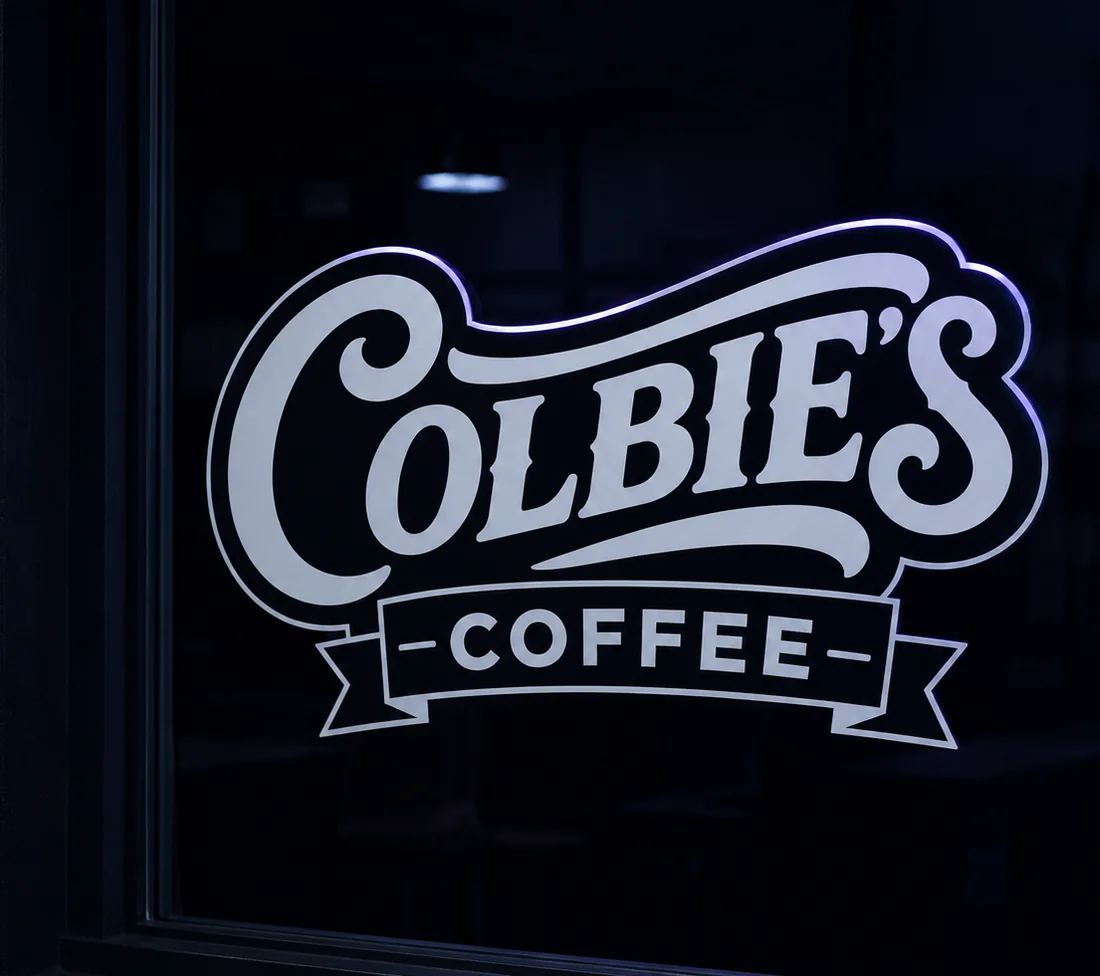
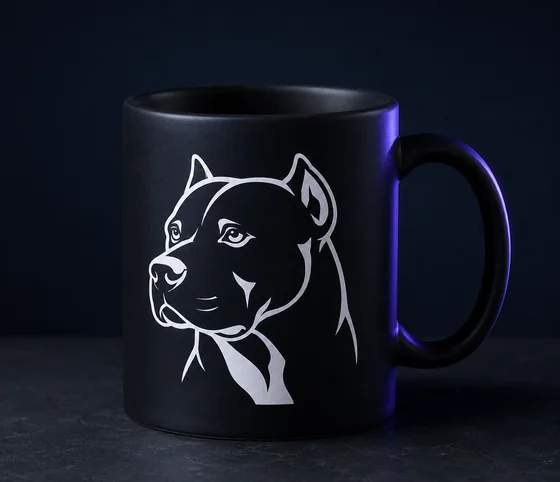
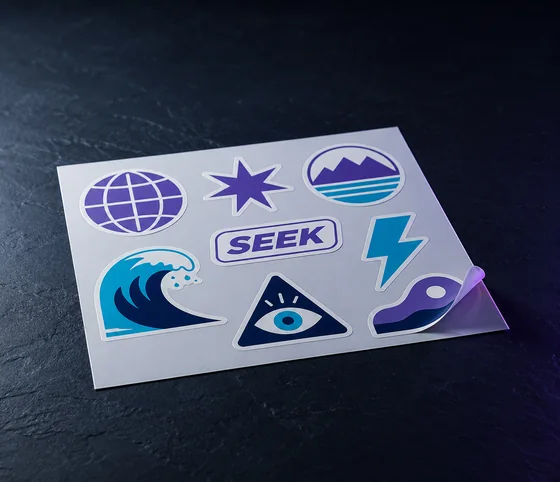
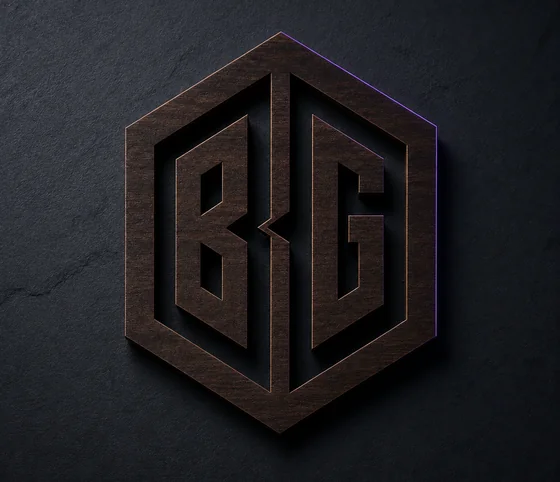
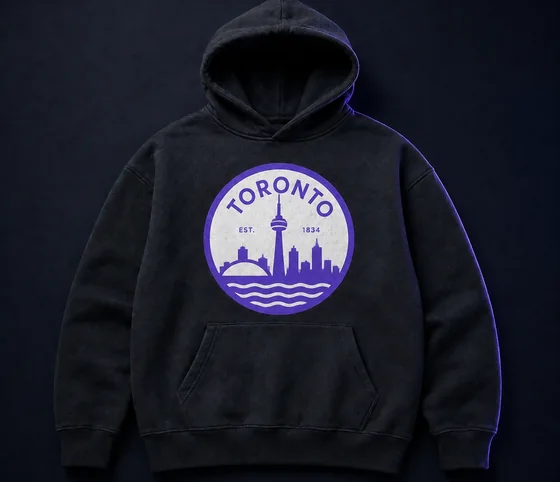
Signage, apparel, stickers, laser cutting. The kind of work it is built for.
Built for people who ship artwork daily
- Print shopHolds its edge from card to banner
- Merch studioFew nodes and real corners to print
- Sign makerDXF and EPS, ready for the cutter
- EmbroideryClean outlines to digitise from
- AgencyOpens in Illustrator, ready to edit
What’s inside
Built for the file, not the demo.

Adaptive corner detection
Hard edges stay hard, curves stay smooth, and the node count stays low enough to edit by hand.
- 215 KB
- 5.2 KB
- nodes
- 260
- paths
- 10
Honest output
See the node and colour count before you download.
- Illustrator
- Figma
- Affinity
- Inkscape
- CorelDRAW
- Cricut
- Silhouette
Opens everywhere
No plugin, no import dance. Standards-compliant files.
Nothing uploaded to trace
Tracing runs in your browser, so your image is never uploaded to trace it.
Batch it
On Pro, drop up to 25 images and get one ZIP back.
Pricing
Cheaper than one reprint.
Try it out, casual use
No credit card required
- Download credits5, never expire
- AI cleanup credits3 to start
- Credits refreshNot included
- Priority supportNot included
For regular design work
- Download credits50 a month · about $0.10 each
- AI cleanup credits3 to start
- Credits refreshEvery month
- Priority supportNot included
For power users & studios
- Download creditsUnlimited
- AI cleanup credits50 a month
- Credits refreshEvery month
- Priority support
Every plan includes
- Unlimited vectorizing & preview
- Simplify & merge colors
- SVG, PDF, EPS, DXF export
- Email support
1 credit = 1 download · Re-downloading a file you already saved is always free · Cancel anytime
Second Opinion
Ask Your Favorite AI About Us
Not sure yet? Let ChatGPT, Claude or Perplexity weigh in — then come back and try it.
It fits real curves and detects true corners, so it produces fewer nodes and cleaner shapes. You get an SVG you can edit, not a mesh of slivers to untangle.
Explore More
Other Ways People Use This
- SVG for CricutConvert PNG and JPG art into crisp SVG cut files for Cricut Design Space — smooth curves, few nodes, no jagged corners to fight.
- SVG for Etsy SellersConvert your product art once and download every format a buyer might ask for — SVG, PDF, EPS and DXF — from the same trace. You own the upload and the download; we don't claim either.
- PNG to SVGConvert PNG to SVG in your browser — the transparent parts of your PNG stay transparent in the result, because we check for them instead of assuming a background.
- JPG to SVGConvert JPG to SVG in your browser. JPEG photos and illustrations are denoised first; flat art like logos gets an edge-preserving cleanup instead, so the compression artifacts baked into the file don't get traced as fringing and spurious paths.
- WebP to SVGConvert WebP to SVG directly in your browser. WebP is exactly what most images saved from a website already are, so there is no re-saving step before you trace it.
- Image to VectorConvert an image to a vector in your browser — PNG, JPG, WebP or PDF in, SVG, PDF, EPS or DXF out. No signup to trace, no upload to a server, and the result scales to any size without blurring.
Trace your first file.
Trace and preview free with no account. Sign in only when you download.