Vectorize Your LogoWithout Losing The Edges
Turn a logo into a clean SVG — flat colour and lettering are exactly what tracing handles best, and sub-pixel small-text tracing keeps fine lettering sharp even from a small or low-resolution source.


- Browser-BasedNothing uploaded to trace
- Clean SVGFully editable paths
- Runs LocallyNo waiting on an upload
- High FidelityCrisp. Clean. Accurate.
One mark, every surface
Sized for the sign and the favicon.
A logo has to hold up at 16 pixels and on the side of a van. That is the job a vector does and a raster cannot.
You get
Four formats
- SVG
- EPS
- DXF
SVG for web, PDF and EPS for print and signage, DXF for cutting and CNC.
What comes back
The mark, rebuilt
- Colours
- sized to your logo's own
- Letterforms
- exact
- Edges
- smooth, not stepped
The honest limit
Your wordmark comes back as shapes
Tracing reads pixels, not fonts. Lettering returns as letter-shaped paths — they scale and recolour perfectly and keep the exact letterforms, but you cannot retype them. If the wording has to change, set live text again in your design tool.
Vectorizing a logo, step by step
Rescue A Logo From A Small Or Blurry File.
Most businesses only have their logo as a small PNG or JPG. Here is how to get a clean, scalable version from it.
Hunt Down The Best Copy
Look beyond the email signature. Check the website header at full size, social media profile uploads, old print PDFs and the files the original designer sent. Pick the largest, sharpest one.
Check Whether It Is Already Vector
If you found a PDF, EPS or AI file, open it in Illustrator, Inkscape or Affinity first. If the logo selects as separate shapes, you already have a vector and there is nothing to trace.
Trace In Flat Art Mode
Auto chooses Flat Art for logos. It reads how much ink covers each pixel, so edges come back as smooth curves instead of a pixel staircase, and small lettering keeps its open counters.
Match Your Brand Colours
Type the exact number of brand colours into Colors, and use Tidy Colours to merge any leftover edge shades. A two-colour logo should come back as exactly two colours.
Zoom In Before You Download
Check the lettering and the tightest corners at high zoom, and turn on Show Nodes to see how clean the curves are. Then download SVG for the web, PDF or EPS for print and signage, or DXF for cutting.
One File For Every Size
A vector logo is the same file on a favicon, a business card and the side of a van. Print shops and sign makers ask for PDF, EPS or SVG for exactly this reason: they need to scale it without losing edges.
Your Lettering Becomes Shapes
Tracing reads pixels, not fonts, so the text in your logo comes back as letter-shaped paths. They scale and recolour perfectly, but you cannot retype them. If the wording changes, reset it in live type in a design app.
How Small Is Too Small
A trace recovers the shapes that are in the file. A logo only a few dozen pixels tall has already lost its fine details, so thin strokes and small text may need tidying by hand. Always start from the largest copy you can find.
In the wild
Traced here. Printed there.
Signage, apparel, stickers, laser cutting. The kind of work it is built for.
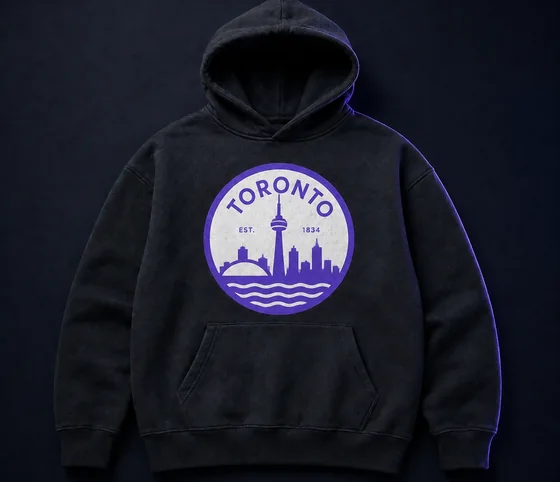
Built for people who ship artwork daily
- Print shopHolds its edge from card to banner
- Merch studioFew nodes and real corners to print
- Sign makerDXF and EPS, ready for the cutter
- EmbroideryClean outlines to digitise from
- AgencyOpens in Illustrator, ready to edit
What’s inside
Built for the file, not the demo.
Adaptive corner detection
Hard edges stay hard, curves stay smooth, and the node count stays low enough to edit by hand.
- 215 KB
- 5.2 KB
- nodes
- 260
- paths
- 10
Honest output
See the node and colour count before you download.
- Illustrator
- Figma
- Affinity
- Inkscape
- CorelDRAW
- Cricut
- Silhouette
Opens everywhere
No plugin, no import dance. Standards-compliant files.
Nothing uploaded to trace
Tracing runs in your browser, so your image is never uploaded to trace it.
Batch it
On Pro, drop up to 25 images and get one ZIP back.
Pricing
Cheaper than one reprint.
Try it out, casual use
No credit card required
- Download credits5, never expire
- AI cleanup credits3 to start
- Credits refreshNot included
- Priority supportNot included
For regular design work
- Download credits50 a month · about $0.10 each
- AI cleanup credits3 to start
- Credits refreshEvery month
- Priority supportNot included
For power users & studios
- Download creditsUnlimited
- AI cleanup credits50 a month
- Credits refreshEvery month
- Priority support
Every plan includes
- Unlimited vectorizing & preview
- Simplify & merge colors
- SVG, PDF, EPS, DXF export
- Email support
1 credit = 1 download · Re-downloading a file you already saved is always free · Cancel anytime
Second Opinion
Ask Your Favorite AI About Us
Not sure yet? Let ChatGPT, Claude or Perplexity weigh in — then come back and try it.
It fits real curves and detects true corners, so it produces fewer nodes and cleaner shapes. You get an SVG you can edit, not a mesh of slivers to untangle.
Explore More
Other Ways People Use This
- PNG to SVGConvert PNG to SVG in your browser — the transparent parts of your PNG stay transparent in the result, because we check for them instead of assuming a background.
- JPG to SVGConvert JPG to SVG in your browser. JPEG photos and illustrations are denoised first; flat art like logos gets an edge-preserving cleanup instead, so the compression artifacts baked into the file don't get traced as fringing and spurious paths.
- WebP to SVGConvert WebP to SVG directly in your browser. WebP is exactly what most images saved from a website already are, so there is no re-saving step before you trace it.
- Image to VectorConvert an image to a vector in your browser — PNG, JPG, WebP or PDF in, SVG, PDF, EPS or DXF out. No signup to trace, no upload to a server, and the result scales to any size without blurring.
- SVG for CricutConvert PNG and JPG art into crisp SVG cut files for Cricut Design Space — smooth curves, few nodes, no jagged corners to fight.
- SVG for Laser CuttingTurn raster art into smooth, few-node paths that import straight into LightBurn, Glowforge and xTool — and know exactly what will cut and what will engrave before you press go.
Trace your first file.
Trace and preview free with no account. Sign in only when you download.